3 Mobile Support

  • Subscribe to our RSS feed.
  • Twitter
  • StumbleUpon
  • Reddit
  • Facebook
  • Digg
Showing posts with label Android. Show all posts

Wednesday, 27 November 2013

Handy Android apps for hassle-free holiday travel

Posted on 05:36 by Unknown


If you're hitting the road (or skies) this holiday season, these three Android apps can make your journey less of a headache.

Travel can be stressful no matter the time of year, but the holiday season always seems to be worse. You're stuck managing multiple reservations for flights, hotels and car rentals, facing long lines at security, and, depending on where you're traveling, there's often a looming threat of a snowstorm grounding your plane.
Luckily, we have technology to do some of the hard work for us. While nothing can make airport lines any shorter, I've highlighted three Android apps that can help take the edge off the rest of your travel woes.


TripIt
TripIt helps you organize all your travel plans and reservations.
(Credit: Screenshot by Sarah Mitroff)
Tripit (Free, 99 cents for ad-free version)
Your trip is all planned out, and now your inbox is brimming with confirmations for flights, hotels, and rental cars. Enter Tripit, a freemium service that corrals all the dates, confirmation numbers, and other vital information from your upcoming reservations and turns them into an organized travel itinerary. All you have to do is forward your travel-related emails to TripIt's address and the service figures out the rest.
All the information you could need as you make your journey from airline counter to hotel check-in, including flight times and confirmation numbers, is stored in the Android app and you can even view it when you're offline. You can also get weather reports, directions, and turn-by-turn navigation for the hotels and destinations listed in your itinerary.
You can also download TripIt for iOS.


FlightStats
            FlightStats tells you if there are delays at the airport.
(Credit: Screenshot by Sarah Mitroff)

FlightStats (Free)
There are many, many flight-status apps, but FlightStats is my favorite because of its simple design. This free app helps you track your flight's status and saves your searches for quick access later. It will tell you if your flight is on time, it's estimated departure and arrival times from the runway, terminal and gate numbers, and at which baggage claim carousel you can claim your bags. Once the flight takes off, friends or family who will be picking you up from the airport can track your plane in the air.
You can also search by airport to see local weather conditions and seven-day forecast, time and date information, and a delay index, which tells you if there are any flight delays and how severe they are.
You can also download FlightStats for iOS.


Hotel Tonight
Get a last-minute hotel with Hotel Tonight.
(Credit: Screenshot by Sarah Mitroff)

Hotel Tonight (Free)
This last-minute hotel booking app is essential for when staying with the in-laws isn't working out, or you're stuck at the airport after a canceled flight and don't want to sleep in the terminal. It has an elegant design which makes it easy to find a nearby hotel room on short notice. You might even get a deal since many of the rooms listed are discounted.
There's no need to worry that you'll be staying at a dive, as Hotel Tonight vets all the accommodations that it lists in the app. You also get access to Hotel Tonight's 24-7 customer service, which can help you with a booking.
Read More
Posted in Android | No comments

Saturday, 16 November 2013

For Android tablets, 8 (inches) is the new 7

Posted on 03:00 by Unknown
commentary Today's selection of Android 8-inchers, while rather pricey, are showing more creative differentiation than we're used to seeing in the 7-inch category.


Samsung Galaxy Note 8
The Samsung Galaxy Note 8: This tablet comes with a stylus.
(Credit: Josh Miller) 
 
The tablet market had its breakthrough moment when Apple's iPad arrived sporting a nearly 10-inch screen. Later, much of the significant action among tablets centered on those in the 7-inch realm.
In general, the 7-inch size marks the border between so-called phablets and proper tablets. The group has included the first Android tablet, the original Galaxy Tab from Samsung, the first Nexus-branded tablet from Google (and Asus), and the first Amazon Kindle Fire, introduced at $199, which represented a new pricing benchmark.
But since the introduction of those models, tablet market prices have spiraled down, attracting a glut of 7-inch Android devices. Walmart, no less, has several exclusives. Many of these are available for less than $150 and some for even less than $100. With the range of budget products coming from companies including Hewlett-Packard, Monster Products, and Vivitar, it has been tough to differentiate based on anything but price.


But if tablet brands aren't finding seventh heaven, perhaps eight will allow for one-upmanship. Over the years, several companies tried dancing around the 8-inch mark, with Motorola introducing the 8.2-inch version of its Xoom tablet and Samsung unveiling a 7.7-inch Galaxy Tab as part of what once seemed a crusade to leave no third-of-an-inch increment without a tablet representative.
Variety does seem to have spiced things up, however. Today's selection of Android 8-inchers, while more expensive, are showing more creative differentiation than we're seeing in the 7-inch category. Among the entrants:

The starter pack: E Fun. One of the companies that's slugging it out at Walmart in the 7-inch category, E Fun has long offered tablets in larger sizes as well. The Premium 8HD edition of its Nextbook tablet was one of its first to support Google Play, a huge improvement from the SlideMe store that had previous limited its app selection. Your price of your ticket to this Play, though, leaves no doubt that some 8-inchers are ready to follow their smaller cousins into the bargain basement: $99 at Walmart.com.

The widebody: Acer. An early entrant into the budget 8-inch space, the Acer Iconia A1 came to market after Acer had been early to jump on the Android tablet bandwagon with the 10.1-inch A500. Unlike that device but like the Nextbook, the A1 has a display with a 4:3 aspect ratio, the same as the iPad Mini. While the wide bezels make the A1 somewhat hard to handle one-handed, many people prefer this for viewing photos, Web pages, and other documents. That said, the A1 is a significant step up from the Nextbook in terms of performance and support for Bluetooth.

The scribbler: Samsung. Samsung actually has two 8-inch Android tablets; the 8-inch version of the Galaxy Tab 3 is the middle child of the ho-hum Tab line that includes 7-inch and 10-inch models. The nearly identical 8-inch Galaxy Note, though, includes an S-Pen and its optimized apps and gestures for which the handset king is eager to build developer support, landing the 8-inch Note between the large Note 3 smartphone and the very large but high-resolution Note 10.1 or, in other words, nearly the perfect size for one-handed padlike applications.


Lenovo Yoga tablet
The Lenovo Yoga tablet takes a stand.
(Credit: James Martin) 
 
The standup: Lenovo. After dabbling in the 7-inch Android tablet space, Lenovo has bridged the worlds between the pancake-flat iPad Air and the kickstand-equipped Microsoft Surface with the Yoga Tablet. The device, also available in a 10-inch version, includes a cylindrical side that can be rotated to reveal a kickstand suitable for movie watching, and the company throws in Dolby Digital audio processing to augment that task. The Yoga Tablet's roll bar makes for great battery life and provides a bit of tilt for typing and a handle for reading. Lenovo has attempted to extend the Yoga brand by saying this extends the tablet to a number of modes (including a dubious "hold mode"), but putting all the battery on one side of the device does allow the rest of it to be quite svelte.
As the Nextbook Premium 8HD shows, these step-up tablets aren't necessarily high-end goods, but there's significant pressure to step up the game even at the lower end of the size spectrum. The 8-inch tablets must justify their premium over the cheaper 7-inchers. They also have to compete against the smallest tablet size for ("real", x86-based) Windows tablets that include Microsoft Office.
And of course, there's the king of the tablet hill, the iPad, which is available in an 8-inch Mini version. Apple's latest lineup leaves plenty of room to maneuver around between the original, now at $299, and the new Retina Display-equipped model mocking the iPad 2 at $399. When it comes to Android, though, a smaller screen doesn't have to equate to a smaller number of options.
Read More
Posted in Android | No comments

Tuesday, 5 November 2013

When will my Android phone get KitKat?

Posted on 21:24 by Unknown
With Android 4.4 KitKat finally in the wild, users are already wondering when their smartphones will see the update. Here's what we know so far.


(Credit: Google) 
 
For Android fans who don't have a Nexus 5, when they'll get KitKat is a serious and angst-inducing question. To their credit, some handset manufacturers like Samsung and HTC have already promised the update for their flagship devices, but others haven't been so forthcoming. Here's what we know so far; we'll keep updating this post as we get more KitKat news.
When will your phone break off a piece of that delicious KitKat?


The Nexus line
I'll start with the most controversial topic. The good news is that Google expects that the Nexus 4, Nexus 7, and Nexus 10 devices will get their respective updates "in the coming weeks."
Now, here's the bad news. Samsung Galaxy Nexus owners are rightly peeved that they won't get Android 4.4. One reason is that the developer of the smartphone's processor, Texas Instruments, is no longer in the mobile CPU business and can't help upgrade the handset. It's a bummer and for what it's worth, more than 15,000 people have signed an online petition hoping to change the situation.

Samsung
All we know is that the Samsung Galaxy S4 is in line for the KitKat update, also "in the coming weeks."

HTC
HTC was the first OEM to publicly flesh out plans for Android 4.4. Indeed, Jason Mackenzie, president of HTC America, confirmed that the company will step on the gas to get the latest version of Android out to its flagship One line.
Things should get under way quickly with the HTC One Google Play Edition landing the update within the first two weeks of November. Then, all variants of the HTC One should follow within 90 days or less. The HTC One Mini and HTC One Max will follow.

Motorola
There's been a teaser blog post that said nothing, but Motorola has not indicated which models will see Android 4.4. In the interim, Moto device owners can navigate to the company's support Web site to see if their phone or tablet is due to receive KitKat.
Thus far the only models on the list are the Moto X and the 2013 line (Droid Ultra, Droid Maxx, and Droid Mini) of Droid smartphones. Considering Motorola's tendency to use Texas Instruments in the past, we might look for a "what will, what won't" blog post before long.

Sony
Sony has yet to specify which of its Xperia models will pick up KitKat, but we might look for the Xperia Z and Xperia Z1 to be among the first. A recent tweet from Sony Xperia News tells us that we should be on the lookout for information in short order. Sony has become rather transparent with the last few Android versions so we might keep an eye on the mobile blog.

LG
Given that LG is the hardware maker behind the Nexus 5, I hope that the KitKat love will reach more models beyond the G2. Though a leaked document from French carrier SFR mentions only a December time for the G2, perhaps it's a sign that other models will be close behind.

There's always rooting and ROMs
Regardless of which smartphone or tablet you have, there's always the possibility of taking things into your own hands. A number of custom ROMs have already emerged in the few days following the release of the Android 4.4 SDK.
Rooting your device could be helpful for folks who find their beloved Android on the cutting-room floor. What's more, it's a viable option for those who don't feel like waiting for OEMs and carriers to make announcements.
Read More
Posted in Android | No comments

Sunday, 3 November 2013

KitKat to bring the most-wanted Android change

Posted on 07:17 by Unknown


KitKat's new phone dialer and a new wallpaper treatment.
(Credit: Google)
 
Google today finally revealed the full details for Android 4.4 KitKat, the next version of its mobile operating system. But instead of delivering a raft of flashy new features to advance the mobile OS arms race, KitKat's most notable promise is to really fix the age-old Android problem of fragmentation.
As Google's Android chief Sundar Pichai put it, KitKat will be one version of the OS that will run across all smartphones. The goal is to bring Android to the next billion people and the way to do it is to make KitKat use less memory than previous Android versions.

Android 4.4 also will deliver a "beautiful immersive experience" and an expansion of Google's services to all corners of a device (I'll explain those in more detail below). KitKat will debut on the long-rumored Nexus 5 smartphone that Google also showed off today at a small meeting with reporters in San Francisco.


Giving everyone a break
Getting KitKat on all Android devices is by far the OS' most ambitious and most noble goal. Indeed, even devoted Android fans have to admit that the Android pie has long been cut into way too many slices.
Though Nexus phones and premium devices like the Samsung Galaxy S4 tend to be first in line for subsequent updates, low-end handsets tend to stay on one Android version (often Gingerbread) and one version only. And it's those entry-level devices (Pichai says that emerging markets have three times the Android growth of developed markets) that are prompting the change.
KitKat will give equipment manufacturers the choice to ship only one version of Android by 2014. According to Pichai, it's about selling devices with the latest version of Android and always keeping them on the latest version of Android.
So how will Google get there? While previous Android upgrades required more memory (often a challenge for budget devices), KitKat is changing that model by using 16 percent less memory than Jelly Bean. Also, on the performance front, KitKat brings a 12.9 percent more efficient use of pixels.
Yet, while this all sounds promising, it's unclear if Google will put any pressure on OEMs to ship every new handset with KitKat, even if they have the option to do so. Also, there's no guarantee that existing handsets already in the hands of users will get updated either. After you involve carriers and signature Android skins like Samsung's TouchWiz, the picture gets a little more complicated. So it will be interesting to see how this all plays out.

(Credit: Google)
 
Interface and feature changes
KitKat also is set to bring a new user experience that, as mentioned, Pichai bills as beautiful and immersive. Though "beautiful" is a matter of opinion, "immersive" actually means something real in this case (see below). What's more, though some of the feature additions confirm previously discussed dish from the KitKat rumor mill, there are other tidbits we hadn't heard about before. They include:
  • The revamped phone dialer app will evaluate which contacts you talk to most and automatically prioritize your phone book accordingly. Also, integration with more Google apps such as Maps will let you search for nearby places and businesses right in the phone dialer.
  • Caller ID gets a boost, as well. For incoming calls that don't match a phone number not in your contacts, Google apps will scan and display any matches from local businesses listed in Google Maps.
  • The immersive mode will clear up clutter on your screen by automatically hiding everything except except the one thing you're viewing (like a photo, map, or game). In other words, you'll be in full-screen mode without status and navigation bars. When you're ready to move on, you can bring back your status bar and navigation buttons by swiping the edge of the screen.
  • A new Hangouts app consolidates all of your text and mulitmedia messages, conversations, and video calls into one place.
  • You'll be able to print photos, documents, and web pages from your phone or tablet. Any printer connected to Google Cloud Print will be compatible, along with HP ePrint printers and other printers with Google Play apps.
  • If you have an Android device with an IR blaster, you'll be able to use applications that function as a TV remote. Also, capable devices will now support Chromecast.
  • You'll get an emoji keyboard, if you're into that sort of thing.
  • When switching between homescreens, you can change the order by moving them around.
  • Support for the Message Access Profile (MAP) will let drivers exchange messages between their Bluetooth-enabled cars and devices.
  • Closed captioning comes to most applications.
  • A new look for the e-mail app brings nested folders, contact photos, and revamped navigation.
  • NFC features now will work with more wireless carriers.
  • App developers can take advantage of new step detection and counting composite sensors.
  • Smaller details range from a uniform color for status bars to a new condensed font.
More Google
Lastly, KitKat has a deeper integration of Google services depending on how you use a phone. Google Now will be accessible via one swipe from the home screen. After saying "OK, Google," you can use voice search, send a text, get directions, or play a song. Also coming are new card types that give you more information specific to your interests.

When will I get it?
KitKat will debut today, October 31, on the Nexus 5, which is on sale at the Google Play store for $349 (though supplies are running low already). As for when it will land on existing Android devices, Google has said only that it will come to the Nexus 4, Nexus 7 Nexus 10 tablets, and the Samsung Galaxy S4 in the coming weeks. For its part, HTC has confirmed that all versions of the HTC One will get the update within 90 days (the HTC One Google Play edition will upgrade sooner) with the HTC One Max and One Mini following later.
Read More
Posted in Android | No comments

Saturday, 26 October 2013

Android 4.4 KitKat: What we expect about the announcement, specs, and release date of Google's next OS

Posted on 22:00 by Unknown

At a casual glance, 4.4 KitKat looks much like the current version of Android.
(Credit: TuttoAndroid)
 
The next version of Google's platform, Android 4.4 KitKat, is set to arrive any day now. After three helpings of Jelly Bean, we would hope that the Nestle-inspired build should prove to be a larger update, but so far signs point to minor enhancements.

Until recently, Google has done a great job keeping KitKat under wraps. Officially, Google has only said that its goal with KitKat is to "make an amazing Android experience available for everybody." Some posit this to mean we could see new Android-powered devices such as game consoles, smartwatches, smart TV, and laptops. Others look for a kinder, gentler platform that plays nice with older hardware.
This past weekend proved to be the biggest break in regards to what Android 4.4 looks like as well as some of its potential features. Some changes and details may include tweaks to the app launcher, notification bar, and dialer. Nothing too crazy, of course, but rather a color adjustment here or a transparency there.

When it might be announced

Some rumors suggest that Google has lined up the KitKat introduction for as soon as October 15, but I suspect an invitation for an official event instead. At the least, I expect that Google would dish the new feature set in a live YouTube broadcast. Assuming it plans to introduce new Nexus 5 hardware, which it should, then we might look for at least one day's notice before the big announcement. Other dates tossed around of late indicate that the end of October might also be in order. Should that be the case, there's still time to send out a few "save the date" e-mails and blog posts.

The software we could get

So far, leaked images like those in the gallery above point to minor, cosmetic changes, rather than a massive overhaul. The application drawer could move away from the all-black background in favor of a transparent bar. The pervasive notification area also appears to get the same treatment; a few screenshots show the top bar as having the see-through effect. In a related note, a 9to5Google report shows the notification bar with colors that match or complement various apps. The dialer app, for instance, brings up a blue bar, while the Hangouts app has a green one. It's possible that these particular apps were designed with their own colors and that the transparency is otherwise still present.
The Android 4.4 lock screen could include quick access to the camera.
(Credit: TuttoAndroid)
According to Italian Android blog TuttoAndroid, the lock screen will include shortcut to the camera application. The move would make sense as most custom launchers and lock screens have moved to integrate the oft-used feature.

A slightly more meaty addition, TuttoAndroid site also claims the "always listening" functionality employed in the Motorola Moto X can be found in the Android 4.4 experience. Should this prove true, users can expect quick access to Google Now and searching without having to touch the phone.
An Android Police report from this weekend suggests other changes could come in the area of app folders and widgets. According to their findings, folders are no longer limited to 16 shortcuts and will simply scroll if there are more. Widget placement moves out from the app drawer and back to the more traditional long-press method on the home screen. Speaking of which, users may soon find that the stock Android 4.4 experience allows for more than five home screen panels.
The stock camera experience should see a number of adjustments as well, including options to apply filters, borders, and effects. While Google+ already allows for photo editing and manipulation, it asks that a user have already uploaded the image to the cloud. Other tweaks to the shooter could yield straightening, mirroring, and color balance. If the final product resembles the leaked images we saw, then the app itself could get a makeover. Tweaks could come in the form of streamlined UI with quicker access to flash settings, timers, and image size.
As we discovered in a recent leak, other changes may include the option to save images locally in PDF format, export images in a variety of sizes and quality, and apply built-in filters and effects.

Native printing could be built into Android and may allow for options such as paper size, number of copies, orientation, and choosing between color or black and white.
From the sound of it, Google might simply include Cloud Print at an OS level instead of relying on its standalone application. We might also see wireless display support (via Miracast) in this next version of Android.
One area where Google has struggled to gain traction, mobile payments, could be rolled into the Android 4.4 platform. Screengrabs show a "Payments" option, but it's unclear what its role could mean for people. Presumably this is simply the place where one manages their Google Wallet account. Perhaps the thought is that by including it in the standard Android experience, it gains a larger awareness. The more you know it exists, the more likely you might be to use it.

An updated app suite

As far as the Pure Google app experience is concerned, we may see Drive, Keep, and Quickoffice come preloaded by default (right now they're optional downloads or bundled with one carrier or manufacturer experience). As many of you know, this trio of products and services work seamlessly with other Google properties and adds a layer of productivity. To get a sense for how Android 4.4 KitKat might look in action, be sure to check out the video below. Again, the details are not all that obvious and easy to overlook. However, the experience seems to be one that is smooth and fluid. This is to be expected; Google will continue pushing for performance optimizations across the board.
You might miss it the first time around, but the messaging app is nowhere to be found in the video. As the standard app for sending and receiving SMS and MMS, it's possible that Google is transitioning to Hangouts for its communications. We have long expected to see a unified chat and messaging service from Google; this could be the sign of such an animal.

When KitKat could land

KitKat is expected to ship with the Google Nexus 5 smartphone first, and then later come to other Nexus devices via over-the-air updates. If history is an indicator, the most recent Nexus 4, Nexus 7 2013, and Nexus 10 devices, as well the previous generation Galaxy Nexus and Nexus 7 2012 to pick up the release first, maybe a few weeks after the launch.
In terms of all other devices, I suspect the same rules still apply; newer and more popular models will get priority seating aboard the S.S. KitKat, like the LG G2 and HTC One. Note that phones that use custom interfaces (that's most of them) will take longer to get the update. Handset makers are becoming ever more vocal over social media so look for OEMs to detail specific devices in blog posts and status updates. Realistically, if you are running 4.1 or 4.2, you might expect some Nestle love this winter.

What's missing?

Taken as a whole, the 4.4 KitKat version of Android looks like it's a minor, not massive, step forward. But, given this is still a version-point update and not a full 5.0 release, we should keep our expectations in check. Is there something in Android that you see as lacking at the Android 4.3 Jelly Bean platform level? Which features in other smartphones that you would like to see come to Android? I invite you to share your thoughts in the comments below.
Read More
Posted in Android | No comments

Sunday, 20 October 2013

Unique photo tools, if you can find them

Posted on 00:00 by Unknown


The good: Camera360 Ultimate for Android is a free photo editor featuring tons of filters, unique shot modes, and extras not found in other apps from the genre.
The bad: The interface is harder to navigate than it should be. Basic tools for cropping and rotating photos are missing. Burst and Double Exposure modes are available for iOS, but not Android.
The bottom line: Even with its wealth of features, Camera360 is a tough sell because of its missing basics and difficult interface.

Camera360 Ultimate for Android is a photo editor with tons of fun and unique features. With it, you can make live adjustments to photos as you're taking them, or you can snap a photo and apply filters and other effects afterward. With so many features on tap, Camera360's biggest problem is its interface. Even with several hours of experience with the app, we found the overwhelming number of menus disorienting and the lack of instructions or tutorials disappointing.

Tons of interesting photo features
Camera360 is not your run-of-the-mill photo-editing app. It seems to focus more on high-level editing, and misses some of the more basic functions that are common to most photo editors. To give you an idea, it lacks basic crop, rotate, brightness, and contrast tools, but it has an overwhelming number of filters and different shooting modes.
One of Camera360's alternate shooting modes, called Magic Skin, is designed solely for selfies and other shots of people; it has an entire filter list dedicated to making your portraits look better, with one filter even making lips look redder (it's called "Sexy Lips"). Some of the options are supposed to smooth out wrinkles and blotches, but when we tried them out, they seemed to make skin look a little washed-out and otherworldly.
Camera360 Ultimate also has a ton of interesting filters divided up into various categories such as Lomo, Retro, HDR, and Dreamlike. Each of these categories has a handful of separate filters to experiment with, and there are artistic categories such as Ghost and Sketch. Some of these options can help add character to a photo while others like the Huge Head effect seem to barely work at all. Still, with so many options, this app does a great job of giving some variety within each category. You can apply as many filters as you want to an image, but there is no layer manager, so you should definitely be sure of your choices when you hit the Apply button. That said, using multiple filters can make for some really neat effects.

Camera360 has tons of features, but because of the confusing interface, they can be difficult to find.
(Credit: Screenshot by Jaymar Cabebe)
 
Along with an enormous number of filters, Camera360 Ultimate has several in-camera tools that let you make adjustments as you shoot. Up top, next to the flash toggle and camera-switch buttons, there's a menu bar with things like focus adjustments, white balance, timer, and image stabilizer. There's even an exposure setting that can help you get a good shot while in difficult lighting situations.

Other camera modes
Tilt-shift Mode is a popular one that lets you place a vertical or horizontal bar of blur on your shots. It's easy enough to use, but it lacks the versatility of other tilt-shift-capable apps that let you also rotate and otherwise reshape your blurred areas. Meanwhile, Color-shift mode works well, as it renders your photo in black and white, but lets you pick a single color to make pop.
Read More
Posted in Android | No comments

Monday, 14 October 2013

Jelly Bean sprouts up on almost half of all Android devices

Posted on 22:30 by Unknown
As KitKat looms, the latest available flavor of Android has spilled onto 48.6 percent of all Android phones and tablets.


Jelly Bean is now on close to half of all the Android devices tracked on Google Play, according to Google's Android developer dashboard.
Stats gathered during the seven days ended October 2 revealed Jelly Bean with a 48.6 percent slice of the market. Specifically, version 4.1.x accounted for 36.5 of all devices, leaving version 4.2.x with 10.6 percent and version 4.3 with 1.5 percent.
The latest data showed an ongoing gain for Jelly Bean, which was found on 45 percent of all Android devices in August. Assuming the trend continues as expected, Jelly Bean should easily surpass the 50 percent mark by the time Google's next report surfaces.

(Credit: Google) 
 
At the same time, older versions of Android continue to fall by the wayside.
Ice Cream Sandwich's hold dripped down to 20.6 percent from 21.7 percent in August. And Gingerbread, which was the dominant Android version until this past July, dropped to 28.5 percent from 30.7 percent in August.
Google recently announced the coming of Android 4.4, aka Kit Kat, though it has yet to reveal a specific launch date.
Read More
Posted in Android | No comments

Wednesday, 9 October 2013

Six Sweet Things You Can Do With NFC

Posted on 21:09 by Unknown


You know NFC. It's that feature on your phone that you insist is really cool and some day you'll totally find a use for it. Well, today is that day.
Most modern Android handsets have an NFC antenna built in (sorry iPhone users, but once again, Apple has said no). However, for most of the things we'll be talking about here, you'll need some form of NFC tag. You can buy them online for fairly cheap. For example, Tags for Droid sells packs of NFC stickers and keychains, but any tag with a writeable chip will do.

Turn on Your Computer When You Get Home

Six Sweet Things You Can Do With NFC

Waiting for your computer to start up when you get home is yet another drag in an evening that's already wearing you down. However, leaving your machine on all day just to save yourself a few seconds will cost more than it's worth. Reddit user Captainmathmo solved this problem with an NFC tag he can tap to remotely turn on his computer as soon as he gets home.
The process requires Tasker, a Wake on LAN Android app, and a PC that has support for Wake up on LAN. You can find the detailed instructions over on the reddit thread here. Once that's done, set an NFC tag somewhere inside your home that you can tap as you enter.

Activate Wi-Fi Tethering

Six Sweet Things You Can Do With NFC

Sure, it might not be that difficult to dive into your phone's settings and activate Wi-Fi tethering (if you have it available), but who has the time? If you want to make it a little easier to work remotely, you can create an NFC tag that will automatically launch tethering, and then stick it to the edge of your laptop. NFC Task Launcher can be used to write to a tag for this purpose.

Share Your Wi-Fi Password with Guests

Six Sweet Things You Can Do With NFC

If you're like me, your Wi-Fi password is as long and complicated as your sordid and mysterious past. Rather than hand your guests a slip of paper with a bunch of case-sensitive characters scribbled on it, write the password to an NFC tag.
There are a couple of ways to go about this. InstaWifi can be used to easily share Wi-Fi passwords directly via NFC. The downside is that this requires all your guests to have InstaWifi installed. Downloading an app just to share a bit of text is a drag, so this really only works if everyone you know is doing it, too. Alternatively, you can embed a single tag with your Wi-Fi password and your guests can read it with most NFC read/write apps. If your friends don't have one of those (like the aforementioned NFC Task Launcher), that should at least be an easier sell.

Enter Driving Mode When You Dock Your Phone

Six Sweet Things You Can Do With NFC

Car docks are a relatively cheap way to make your phone easier to use for things like navigation while you're behind the wheel. An NFC tag can be stuck to the dock so that it automatically launches tasks or apps you need. You can use NFC Task Launcher (again!) to automatically trigger navigation to a pre-specified address, or to launch your music app and set the media volume to a preset level.
If you don't want to stick an NFC tag to your car dock (for example, if you happen to share the car with another person), this is also a great time to use an NFC keychain. It doesn't require you to carry any extra items, and placing the keychain against your phone on the way to the car couldn't be easier.

Share Contact Information

Business cards are so 20th century. With modern smartphones and constant data sync across virtually everything we do, there's almost no reason for us to manually enter phone numbers anymore. You can share your own contact info with another Android device by opening up your contacts app, tapping on your own entry (if your phone's app doesn't use one, create one), pressing your phone against the other, and "beaming" it across.
While this method is hardly time-consuming, there are still occasions where you don't want to stop someone and explain why they need to press their phone against yours. In that case, you can pass off NFC tags pre-programmed with your contact info and let them input it at their own pace. On a very simple level, you can buy NFC tags in bulk for cheap. If you want to get fancy, though, you can get business cards with NFC built in. While this may seem redundant, it can be a nice way to grab someone's attention, as well as add include a bit more info than you'd otherwise be able to print on a card.

Launch Tasker Actions

It would be outside the scope of this article to go over everything that you can do with Tasker, but I'd be remiss if I didn't point out that you can trigger all of them with NFC tags. To do this, you'll need to create tasks in Tasker and enable "Allow External Access" in Tasker's preferences (under Misc). Once that's done, you can use (care to take a guess?) NFC Task Launcher to trigger any named task.
All of these actions can make NFC useful on your device. However, don't forget that even basic Android functionality allows you to pass links, photos, contact info, or just about anything else between two devices simply by tapping them together. We may forget it's there, but NFC is a handy little thing to have around.
Read More
Posted in Android | No comments

Saturday, 5 October 2013

2013 Paperwhite is subtly better, faster

Posted on 20:30 by Unknown

The good: Amazon has improved on last year's excellent Paperwhite e-reader with a faster processor, more responsive touch screen, and a better integrated light that's brighter and whiter and displays more evenly across the screen. Pages also refresh less frequently (less flashing). A smattering of new features enhance Amazon's already best-in-class content ecosystem.
The bad: Device hasn't gotten smaller or significantly lighter since last year, an AC adapter isn't included (just a Micro-USB cable for charging). The ad-free version costs $20 more.
The bottom line: While the "all-new" Paperwhite may seem like an unspectacular upgrade on the surface, it's a clear improvement over the original Paperwhite and arguably the best e-reader currently available.
  
I don't know if the analogy is perfect, but I think of Amazon's new Kindle Paperwhite as the iPhone 5S of e-readers -- it looks nearly identical to the original Paperwhite, but it's zippier and better.
For starters, the new Paperwhite is the first shipping product to feature E Ink's Pearl 2 display, which offers better contrast, along with 1GHz processor (25 percent faster than the 800MHz found in the original Paperwhite), a next-generation built-in light, and a more responsive touch-screen display (1,024x768-pixel resolution with 212 pixels per inch) that has a 19 percent tighter touch grid. It's also a hair lighter, weighing 7.3 ounces instead of 7.5 ounces.
While the two models look the same (there's an Amazon logo on the back instead of a Kindle logo), the most immediate difference you notice is that the display looks whiter -- as opposed to having a little bit of blue twinge -- and the lighting is more uniform (the light is also brighter at its highest setting).

The integrated light displays more evenly across the screen, with no murkiness at the bottom.
(Credit: Sarah Tew)
 
On the original Paperwhite, there was a bit of murkiness (sort of a clouding effect) at the bottom of the display when using the light, particularly at night. The light now displays noticeably more evenly across the bottom and the rest of the screen.
Compared side by side with the original, the old Paperwhite's display does look a little dull and gray (with that blue twinge). The official company line is that the "whites are whiter and the blacks are blacker, so pages are virtually indistinguishable from a physical book." I wouldn't quite go that far, but the display -- and reading experience -- continues to improve and looks more like a printed book.
Amazon encourages you to read with the light on, though not necessarily at full brightness. It's nice that you can easily adjust that brightness, but it's worth mentioning that there's no dedicated physical button for turning the light on and off like there is on the Kobo Aura. You simply use the onscreen slider control to adjust brightness or turn the light off altogether.

Instead of a Kindle logo on back of the device, there's an Amazon logo.
(Credit: Sarah Tew)
 
Of course, some people don't like to read with the light on when they have ample natural light (or are in direct sunlight). With the light off, it becomes much harder to tell the difference between the the original Paperwhite and the new model. Both editor David Katzmaier and I also thought that text looked slightly sharper with the light off. Katzmaier, CNET's home video guru, uses the now-discontinued 2011 Kindle Touch regularly and wasn't a fan of the slightly flawed lighting scheme on the original 2012 Paperwhite. However, he says that given the choice today, he'd opt for the new Paperwhite over the Kindle he uses now, as well as the $69 entry-level Kindle (which lacks both a touch-screen and self-illuminated screen).
Amazon says the contrast has been increased, but it's hard to tell that the blacks are that much blacker, even if they are. (Peter Larsen, VP of Kindle product management, told me the percentage increase is "double digits," though it varies slightly with each batch of e-ink so it's hard to put an exact number on it.)
The new display requires less refreshing, which is sometimes referred to as flashing (e-ink screens need to be refreshed every so often to eliminate artifacts or "ghosting"). The previous model refreshed every six page turns and in my tests with the new model it refreshed every 13 to 14 pages.

The original Paperwhite (left) next to the new Paperwhite.
(Credit: Sarah Tew)
 
As for battery life, it remains the same at up to 2 months with Wi-Fi off despite the bump in processor speed. To conserve battery life, it's crucial to keep Wi-Fi off. While the "experimental" Web browser remains on board, you really only need to turn Wi-Fi on to buy books (or load ones you have stored in the cloud) or download newspapers and magazines (subscription required). You can also email documents and Web articles to your device, though the Paperwhite isn't packed with storage; it comes with the same 2GB of integrated storage (1.25GB available for user content), which Amazon says allows you to store up to 1,100 e-books. A Japanese version will include 4GB of storage.
Along with the original Paperwhite, I compared this model to Kobo's Aura, which is a nicely designed e-reader that's smaller than the Paperwhite, despite including an identically sized screen. I like the Aura, but the screen and lighting are better on the Kindle. It's not a huge difference, but it's definitely noticeable, and the Paperwhite costs less, starting at $119 for the Wi-Fi-only model that serves up ads -- Amazon calls them "special offers" -- on your home screen. You can opt out of the ads for $20 extra, either at checkout or at any time after you buy the device, so it's worth going with the cheaper model first. A 3G-enabled model -- which lets you access Amazon's store over a cellular network at no extra charge -- will ship on November 5 for $189 (or, again, $20 extra to avoid the ads).

The device charges via USB. A cable is included but not an AC adapter.
(Credit: Sarah Tew)
 
Software changes and upgrades
The rest of the changes involve feature upgrades that Amazon has -- or will -- add through software updates.
These include Goodreads integration (Amazon bought the popular social reading and review site earlier this year); a Smart Lookup feature that streamlines the Dictionary, Wikipedia, and X-Ray (character and story notes for some titles) look-up interface with a single, easy-to-access set of tabs; Kindle Page Flip (a sort of picture-in-picture page-scanning feature); and Vocabulary Builder, which keeps track of all the words you look up in the dictionary and allows you to create flashcards to help you learn those those words.

Amazon's Kindle FreeTime feature, which offers parental controls, will come to the Paperwhite by year's end.
(Credit: Amazon)
 
There's also a new In-Line Footnotes feature ("with a single tap read the complete text of each footnote in-line without changing the page") and Amazon will bring its kid-centric Kindle FreeTime feature to the device in a couple of months. FreeTime allows parents to lock their kids out of the Kindle store, create reading lists and goals, as well as track progress.
Some of the new software features will be available at launch (I was able to test Smart Lookup and Vocabulary on my review sample) while others, such as FreeTime and the Goodreads integration, will be released later this year.
I'm not going to dig into all the existing features the Kindle Paperwhite has to offer, but you can still highlight passages, share them on social media, and choose among several font sizes and types. Suffice to say, Amazon continues to expand the feature set and streamline the user interface. With the new processor in place and the improved touch sensitivity, this Paperwhite just seems to operate a little more smoothly than the previous model. There's still a little bit of the lag that's inherent to e-ink, but the overall the device feels more responsive.

Some of Amazon's new feature upgrades will be available at launch while other will get added in a software update later this year.
(Credit: Sarah Tew)
 
Kindle's killer app: The Amazon ecosystem
The Kindle is a one-stop shopping gateway to Amazon’s best-in-class Web store, which arguably offers the largest array of books, newspapers, and magazines on the Web.
Amazon offers more than 1.8 million e-book titles, including more than 180,000 exclusives. The Web retailer also tends to offer discounts more frequently than many of its competitors. (Amazon says, "Over a million titles are priced at $4.99 or less. Over 1,700,000 titles are $9.99 or less.") While many have differing opinions on whether some of these practices are fair to competitors -- or good for the long-term health of the publishing industry -- they are certainly consumer-friendly, at least in the short-term.
A large selection of newspapers and magazines are also available on the Kindle. Note that these e-ink versions are often stripped-down, text-only iterations of what you may get on a Web site, tablet (or paper) version of the same title. Likewise, many of these require separate subscriptions -- so even if you already receive, say, the hard-copy or electronic version of The New York Times, you won't necessarily be grandfathered in to the e-ink Kindle version. (By contrast, newspaper and magazine apps generally do let you use your existing credentials to access them at no additional charge.)

(Credit: Sarah Tew)
 
If you're a subscriber to Amazon Prime ($79 per year, which equals less than $7 per month), you already get free two-day shipping for Amazon orders, and thousands of free streaming-video titles from Amazon. On the Kindle, you also get access to the Amazon Lending Library. That lets you "check out" thousands of titles (albeit one at a time) at no additional charge. The list has more than 200,000 titles, but -- fair warning -- many aren't exactly mainstream, popular titles. You can also borrow e-books from most local libraries on the Kindle, as you can with other e-book readers. Amazon also offers a cool "send to Kindle" plug-in for the Chrome and Firefox browsers that lets you send any Web page to the Kindle for later reading; basically a free version of Instapaper.
The other big benefit of choosing Amazon as your e-book provider is that the company offers reading apps on nearly every major hardware platform. That means you can still access all of your Kindle content on iPads, iPhones, Android phones and tablets, Windows PCs and Macs, and any other device with a Web browser.
What you won't get with the Kindle is an "open" platform. Amazon makes no bones about the lack of compatibility with other services or competing book formats. So -- while the Kindle can read PDF, TXT, and MOBI files natively, as well as other file types via conversion -- it cannot read EPUB files from third-party bookstores. (Unprotected EPUBs and other files can be converted to be viewed on the Kindle with the Calibre software.) If that's a deal breaker, go with Nook, Sony, or Kobo instead.

Conclusion
While the 2013 Paperwhite may seem like an unspectacular upgrade, it clearly improves on the previous version. Basically, Amazon has taken an excellent product and made it about 20-25 percent better.
Still, when you review a product that has basically the same design as the previous year's model, there's always going to be a slight sense of disappointment because you always hope that a device like this will manage to drop a decent amount of weight (and some size) with each new iteration. Likewise, while the Paperwhite isn't any more expensive than last year, it's not any cheaper, either.
Looking at the Kobo Aura, you can see where the Paperwhite could've achieved perfection: the Aura is oh-so-slightly smaller and lighter than the Paperwhite, and it's got more storage capacity. Of course, it's more expensive, and -- the big one -- doesn't offer Amazon's far superior shopping and content ecosystem.
And that's when you're shocked back into reality. The Paperwhite's slight shortcomings are mere quibbles on what's still the best overall e-ink e-reader currently available. Toss in the best-in-class Amazon ecosystem, and you've got an easy Editors' Choice for anyone seeking a dedicated reading device.
Read More
Posted in Android | No comments

Friday, 4 October 2013

Looking For A Way To Test Your App Or Game For Vulnerabilities? Testdroid Has You Covered

Posted on 07:59 by Unknown
Back in July, we took a look at Testdroid, a service that allows developers to test their application or game on over 250 different actual devices. This isn't an emulation service – every single test is performed on real Android-powered devices, which in turn exposes real problems. Some of the biggest names in the book are using Testdroid these days – Facebook, Swiftkey, Rovio, Pinterest, Paypal, and many others – so it's only natural that the company step up its game to keep customers happy.
Introducing security and vulnerability testing, now part of Testdroid Cloud. With these new tests, developers are able to find security holes and vulnerabilities within their apps quickly and easily. Here's how it works.

1

Modern applications "consist largely of third-party code/libraries" amidst the proprietary code. This makes developers' jobs easier, as it essentially "automates" (for lack of a better word) the non-core functions of the application. But here's the kicker: said libraries and third-party code can contain known vulnerabilities. This, of course, affects the security of the app or game. And no one wants an insecure app.
That's where Testdroid Cloud comes into play. Testdroid now integrates with Codenomicon's security test suite (called APPCHECK), which scans the app and lists all known vulnerabilities found within the code and libraries. The user doesn't even need to provide the source code – simply upload the apk and away it goes. The app is then scanned, where both third-party code and libraries (proprietary and open source) are exposed and known issues are revealed. The entire process only takes about a minute.
But it doesn't just stop with the initial scan. The Codenomicon scan will not only identify all software packages and libraries along with any associated vulnerabilities, but it will continue to monitor the application fingerprint and send out notification alerts when new vulnerabilities are found. That's good looking out.

1[5]

So, who can benefit from Testdroid's security and vulnerability testing? It's not just for those looking to make a profit off their app – financial institutions, banks, payment vendors, service providers, and video/other media streaming services can all benefit from application testing, as they're reading and transmitting some incredibly sensitive data (especially anything finance-related).
To show how this new feature works (and how simple it is to use) Testdroid is offering a way for users to check it out free of charge. Here's what you need to do:
  1. Create an account in Testdroid Cloud.
  2. Activate your account by verifying the activation link sent to your email.
  3. Log in and create a new Android project.
  4. For test type, select "App Crawler" and click Create New Test Run.
  5. Upload your APK. After this is done, check "Execute security tests."
  6. Click Start new test run.
1[7]

Testdroid will then not only scan the app for vulnerabilities, but also test it on 15 different Android devices, giving you a taste of what the service is all about. Once you've gotten a feel for what it can do, Testdroid Enterprise is only a few click away.
Read More
Posted in Android | No comments

Thursday, 3 October 2013

Neatly For Twitter Is Now Free On The Google Play Store

Posted on 07:54 by Unknown

The Neatly Twitter client has been making a small but dedicated fanbase for a while now, though it's been available on Android for less than a year. Last week developer F16 Apps decided to pursue a new strategy, and the various versions of Neatly (Android, iOS, and Blackberry 10) are now free. The previous price on the Play Store has shifted between one and two dollars American.

unnamed (1) unnamed (2) unnamed (5)

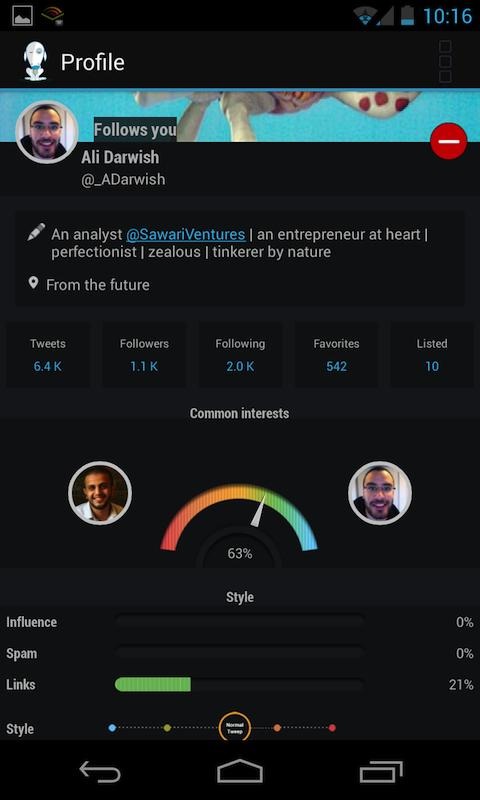
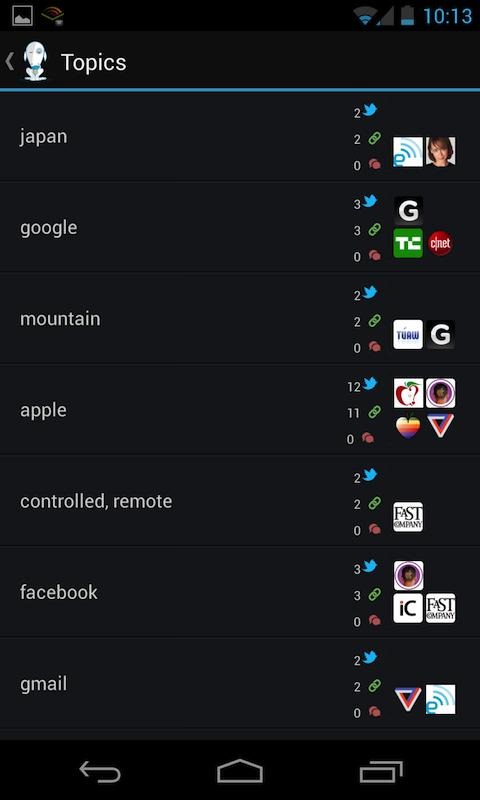
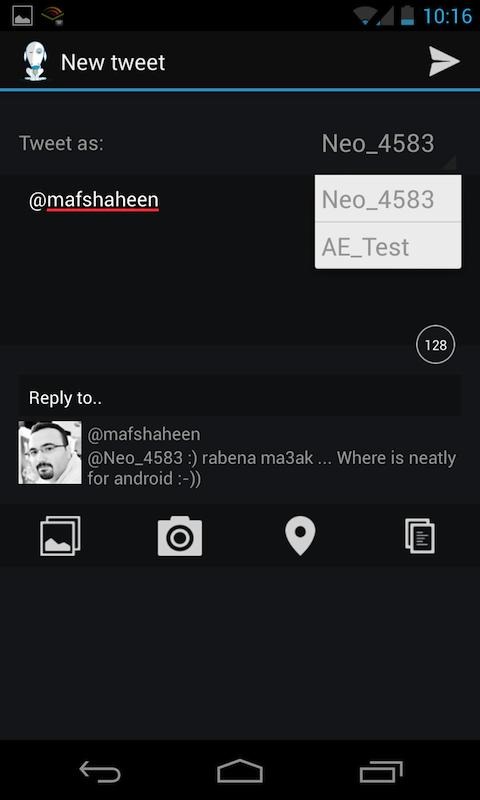
Neatly includes most of the whiz-bang features of a modern Twitter client, but its focus is on intelligent filtering of Twitter feeds. The app can compare your Twitter history to any other user and find common interests, sort your main feed by relevance to you instead of a simple list, and group similar tweets by topic. You can even mute particular topics (say, spoiler-rich Breaking Bad discussion?) and identify them quickly with color flags. It makes Twitter a more social and quantifiable experience. The app is a bit slow on my phone, but the UI is nice and it includes a scrolling homescreen widget, which is a must-have for me (resize it to get more tweets in the same view). Unfortunately Neatly seems to lack landscape and tablet views.

unnamed (3) unnamed (4) unnamed

Neatly had less than 1,000 Android downloads before going free according to AppBrain, so it's not hard to see why the developers chose a more appealing price point. I haven't seen any in-app purchases or other upsells in the app itself and it doesn't look like advertising has been implemented either. Give it a try if you're burnt out on the usual timeline view. Neatly is available for all Android devices running 4.0 or later.
Source: Neatly Twitter

Neatly For Twitter
Download Neatly For Twitter from Google Play
QR code for https://play.google.com/store/apps/details?id=f16apps.android.neatly

Read More
Posted in Android | No comments

Tuesday, 1 October 2013

Nexus 5 log tips wireless charging, Miracast, themes

Posted on 21:11 by Unknown

A leaked log confirms much of what we think we know about a new pure Google phone, and offers a few surprises.


Back in the spring, the Nexus 5 was rumored to be a super-phone code-named "Megalodon." Current leaks are similar to the early chatter, but with a stripped-down camera and less RAM.
(Credit: Android and Me) 
 
The flow rate of Nexus 5 leaks is rapidly accelerating as we near an inevitable reveal. The latest come in the form of a log file that confirms much of what we've already heard in terms of specs, but brings a few new surprises.
The log appears to confirm previous suspicions that the new pure Google phone will come with the necessary guts for wireless charging, as previously revealed in FCC filings.
Also found in the log, which MyCE obtained and combed through for us, is a reference to Miracast. This Android mirroring technology allows you to wirelessly "throw" your Android screen to a TV.

No, it's not the same as a Chromecast, which relies on your home Wi-Fi network and is limited in what it can do. Miracast is a true mirroring technology that basically enslaves your big screen as an extension of your Android device, and via its own ad hoc network.
A final interesting and new detail is the possibility of new themes that could be part of Android 4.4 KitKat. The log makes reference to a theme that still sports a Key Lime Pie icon in some instances.
In addition, MyCE shared leaked screenshots with CNET that show different colored icons in the notification bar. Some show blue icons, some gray icons. Put that together with the mention of a parameter for a "theme" in the logs and we're speculating that it might be possible to choose your own color scheme in KitKat. Some of the screenshots come from sources close to Google, giving me a higher level of confidence than normal of their legitimacy.
The log also confirms other previously reported specs -- a 5-inch, 442 ppi full HD display; 2.3GHz Snapdragon 800 CPU; 2GB RAM; 8-megapixel rear camera and 1.2-megapixel front; a full host of sensors; and LTE radio and NFC capability.
The actual reveal and availability dates for a new Nexus phone seem a little less definite, but it looks like we'll finally get a glimpse of one sometime in October, perhaps as late as Halloween. Let's hope there are more treats in store than tricks when it comes to Nexus 5 specs.
Read More
Posted in Android | No comments

Saturday, 28 September 2013

Sony's SmartWatch 2 is revamped, refreshed, yet faces stiff competition (hands-on)

Posted on 03:42 by Unknown
Sony's first SmartWatch didn't quite live up to our expectations. However, with the introduction of the SmartWatch 2, Sony has made plenty of improvements. These include a refreshed water-resistant design, easy setup with NFC technology, and yes a brighter screen so you can actually view it outdoors.
But with Samsung officially jumping into the smartwatch game by unveiling the Galaxy Gear, and a rumored Apple wrist gadget in the works, the Sony Smartwatch 2 will likely enter a pitched sales battle when it hits the market in September. Sony's updated timepiece will also be challenged by plucky wearable tech upstarts like Pebble and Hot Watch. Read on to find out if the Sony Smart Watch 2 has enough to really impress.

Design
Like the steel Samsung Galaxy Gear, Sony decided to go for the luxurious look of metal. The SmartWatch 2 is made of aluminum, unlike the plastic Pebble. This gives it a nice, premium feel that the Pebble lacks. It features a removable 24mm wristband, so you can swap in other standard bands to customize to your liking. A big, round power button is found on the side, much like the power button that you will find on Sony Mobile's 2013 Xperia lineup.

The very identifiable Xperia power button makes an appearance on the watch.
(Credit: Aloysius Low)
 
Like the original SmartWatch, the SmartWatch 2 features a 1.6-inch touch-screen display, but unlike its predecessor’s OLED screen, the SmartWatch 2 uses a transflective LCD panel instead. This should give it good visibility outdoors, something not possible with the first Smartwatch, a massive design oversight for a timepiece.
In terms of screen resolution, the watch has 220x176 pixels, less than the Galaxy Gear's slightly larger but sharper 1.63-inch 320x320-pixel OLED screen.
Physically, the SmartWatch 2 is slightly larger and heavier compared with the original. However, we don't think the difference is noticeable -- at 23.5g, you'll barely feel the 8g difference over the first SmartWatch. The Gear though tips the scales at a much heftier 73.8 grams. Of course the Qualcomm Toq is a monster that dwarfs all smartwatch comers.
Another key improvement in the SmartWatch 2 is its water-resistant properties, meaning it's protected against accidental spills and splashes. Be advised that you can't take it into the shower with you, though we don't see why you need to read e-mail while shampooing your hair. You also can't go swimming with this watch.
Instead of the custom charging port used by the first SmartWatch, the SmartWatch 2 comes with a standard Micro-USB port. This makes it easier to charge the watch, especially now that Micro-USB cables are readily available.

The SmartWatch 2 can be charged with any Micro-USB cable.
(Credit: Aloysius Low)
 
Features
When the Sony Smartwatch first launched it was expensive ($129.99), costing almost as much as a powerful smartphone. The problem was, the gizmo demonstrated poor functionality out of the box.
For example, you needed to install multiple apps yourself to enable basic features such as notifications from calls or messages. Devices running early software also suffered from frequent crashes and spontaneous reboots.
Worst of all, rebooting and subsequent loss of Bluetooth connection between watch and phone resulted in the watch resetting its internal clock. That's right, the watch would default back to displaying "12:00" in blinking lights like an old-school VCR.
To be fair, Sony took steps to shore up the first Smartwatch's issues through software updates. Still, it was a long way from what we'd call an elegant user experience.
The company claims that this watch will be way easier to set up than its predecessor. Specifically, the SmartWatch 2 has built-in near-field communication capability, which lets you pair with compatible handsets via Bluetooth simply by tapping them together.
Also, after a proper phone/watch link occurs, your Android handset will prompt you to download Sony's SmartWatch app. From there you'll be able to select the various apps you'd like to use. Previously you had to pair devices manually, then search for and install everything separately -- a real pain.
Keep in mind you'll only be getting an alarm and timer app (in addition to the watch faces that come preinstalled) unless you add more functionality.

Here's a digital clock face that you can switch to.
(Credit: Aloysius Low)
 
That said, Sony has made the SmartWatch 2 compatible with apps from the first SmartWatch, so it can run apps such as Runtastic, Twitter, and Facebook.
Surprisingly, the new device doesn't use the latest Bluetooth iteration, version 4.0. Instead it runs on Bluetooth 3.0, which does not have the fancy Bluetooth low-energy protocol the 4.0 release offers.
Of course Sony is already claiming a three- to four-day battery life for its high-tech watch, the same it did for its predecessor. As we learned with that device and the Pebble, it's wise to keep a charger handy or plug it in daily or you run the risk of running out of juice. By comparison Samsung claims a 24-hour run time for its Galaxy Gear product.
Lastly, the SmartWatch works with almost any Android handset, but not iOS as well, which the Pebble can tackle. The Galaxy Gear, however, is locked down to operating with the new Samsung Galaxy Note 3, at least for now.

Outlook
Due out sometime this month, the SmartWatch 2 looks set to tap into the growing interest in wearable tech. The trouble is with heavy-hitters like Samsung and maybe even Apple poised to enter this market, this space is about to get very crowded. That's especially true of a product category in which consumers may not even be interested.
Other wild cards like the Pebble with its small but fanatic user base and the uniquely capable Hot Watch, which boasts wild gesture controls could tempt buyers away from Sony as well
Read More
Posted in Android | No comments

Monday, 23 September 2013

11 ways to trick Android into using less data

Posted on 04:14 by Unknown
With expensive tiered data plans, it's easy to hit your limit. Follow this guide to cut back on data usage (and avoid overage charges). 
 

(Credit: Josh Miller) 
 
Apps are moving to the cloud. Streaming services like Netflix and Spotify are big. And just about every one of us is addicted to social networking.
There's just one thing standing in the way: your data plan.
With unlimited plans dwindling, most smartphone users are stuck with tiered options that sometimes make data usage more stressful than fun. (Anyone who's been hit with an exorbitant overage charge knows this feeling.)
But if you're on Android, you've got a little more wiggle room, thanks to plenty of data-restricting settings. With the proper configurations, you'll find yourself using data at a much slower rate -- so much so, perhaps, that you could even step down a tier.

Tame hungry apps

Whether you're actively using them or not, apps love to eat up data. They're checking for updates, running ads, and refreshing your user content in the background. The good intentions are there, but most times, the conveniences these practices bring don't outweigh the depleted data reserves. It's time to tame those apps.

Update apps on Wi-Fi only
Head to the Google Play store and tap Menu > Settings > Auto-update apps. Here, be sure that "Auto-update apps over Wi-Fi only" is selected. You also have the option to choose "Do not auto-update apps," but it's less preferable, since you'll have to remember to update apps manually.

(Credit: Screenshot by Sharon Vaknin)
 
Configure in-app data settings
To give you a fluid experience, many apps ping servers in the background to keep their content updated. For instance, Google+ backs up your photos and videos as they're captured, while Mint can be configured to refresh banking data.
These conveniences are great, but they come at a cost, so dive into the app settings and disable the data-sucking options you don't absolutely need.

Restrict background data
Even apps that don't allow you to fine-tune data settings could still be loading background data. In Ice Cream Sandwich and later versions of Android, one way to find out which ones are guilty is to go to Settings > Data Usage, and scroll down to reveal a list of apps with accompanying data usage stats.
Then, tap an app to view its usage data, and take a look at the two numbers next to the pie chart. "Foreground" refers to the data used when you're actively using the app, while "Background" reflects the data used when the app is running in the background.
If you notice an app is using too much background data, scroll down to the bottom and check "Restrict background data." Just note that this setting overrides any conflicting app behavior (like an app that would otherwise update your bank account info every few hours).

Take advantage of preloading and caching

As data constraints become a reality for most smartphone owners, developers are including options that make their apps less demanding. Don't let these options go unnoticed -- they'll save you heaps.
Preload streaming-app content
As we become increasingly frugal about cellular data usage, more apps offer caching (or preloading), letting you download content on Wi-Fi and view it at any later time. Spotify, for example, lets users download playlists. Similarly, YouTube preloads subscriptions and videos on your Watch Later list.

(Credit: Screenshot by Sharon Vaknin) 
 
The majority of apps that offer preloading are the ones that need it most. So use it. Head into the settings menu of any app (especially streaming-media apps), to see if the option is available. Alternatively, you might find that an app allows you to lower streaming quality while on a cellular data connection.

Download files on Wi-Fi only
Unless you absolutely have to, refrain from downloading songs, movies, or large files while using a cellular data connection. It's common sense, but be sure to do any downloading while you're on Wi-Fi.

Cache maps before traveling
With its new offline feature, Google Maps now allows you to cache maps. It takes some time to download them, and does require a chunk of storage space, but once a map is downloaded, you'll be able to view and navigate it without using your data connection. Here's how.

Check sync settings

With automated syncing, Google makes sure your accounts are updated any time a change is made. Unfortunately for your data plan (and battery life) that means your phone is constantly pinging the server to find out if new content needs to be downloaded (or uploaded.) There are a couple ways to temper this.

Fine-tune sync settings
During the initial phone configuration, you probably opted into account syncing. By default, everything is set to sync, including things like photos, the Play Store, and other Google apps. You don't necessarily need all these items syncing -- especially data-heavy ones like photos.
To adjust sync options, head to Settings > Accounts > Google, and select an account. Here, uncheck the boxes next to the items that don't absolutely need to be synced. Repeat the same process for other accounts.
After that, you can manually sync accounts by visiting their respective apps.

Temporarily switch off sync
Going out for the night? Sitting at your desk? Prevent your phone from unnecessarily syncing data by disabling syncing, either from the notification bar, or by going to Settings > Data Usage > Menu > uncheck "Auto-sync data."

Minimize browser data usage

If Web browsing is the data-hogging culprit, it's no surprise. Some Web sites have yet to be optimized for mobile, while others eat into data with bulky advertisements.

(Credit: Screenshot by Sharon Vaknin) 
 
The simple answer to these woes is data compression. With it, a Web page is first compressed in the cloud before being sent to your phone, significantly reducing the download size.
There are some drawbacks, however. First, even though your data is encrypted and anonymized, the browser must still process your activity while it compresses it. Not everyone is comfortable with that.
Secondly, sometimes compression means sacrificing quality, leaving you with slightly altered Web pages.
Even so, the option can be worthwhile for anyone on a tiered plan (or times when you're on a slow connection). Opera, a much-loved browser, is one such app that offers compression. Just head to the Settings menu to enable it. After some use, Opera will tell you just how much data you saved.
Alternatively, Chrome Beta includes a handy new data compression feature, but you'll have to enable it. To do so, head to Settings > Bandwidth Management > Reduce data usage. Going forward, you can revisit that settings window to see how much data you're saving.

Call in for help

If you've given it all you got and you're still breaching your data limits, it's time to call in for help.

Monitor data usage
One of the most useful Android features is the Data Usage tool. With it, you can view your monthly activity, see which apps demand the most megabytes, and configure usage warnings. Find out how to use it with our step-by-step guide.
Alternatively, Onavo Count offers a similar solution, but steps it up by including a widget, letting you keep an eye on real-time data usage at any moment.

Compress all data activity
As an absolute last resort, Onavo Extend takes its Count app a step further by actively compressing almost all incoming data. For instance, e-mails are simplified, Web pages are compressed server-side, and photos are optimized.
Keep this option in your app drawer, should you find yourself running low on data.
Read More
Posted in Android | No comments
Older Posts Home
Subscribe to: Posts (Atom)

Popular Posts

  • Experience the Galaxy Note 3 on nearly any Android device
    Samsung offers a free app to show you what it's like to use the Note 3.                              (Credit: Jason Cipriani)    Do yo...
  • CM Flare S100 Stock Recoveries + Tutorial in Flashing using AIO Flasher
    Stock recovery for CM Flare S100 is used in wiping data/factory reset, wiping cache partition, and for backing up and restoring our ROM. Yo...
  • PS4 launch date confirmed for November 15
    Today Sony announced the official launch date of the new PlayStation 4 game console as November 15 in North America and November 29 in Europ...
  • Clever adapter connects USB accessories to your Android device
    With an inexpensive USB OTG adapter, you can connect things like keyboards, USB hard drives, and even gaming controllers to your Android p...
  • Motorola Moto G: 5 reasons why you should wait for it to launch in India
    Planning to buy an affordable Android phone? We’d suggest you wait for the recently announced Moto G. Moto G has all the ingredients of an e...
  • Essential steps for securing your phone, and what else can be done to foil thieves
    As smartphone theft grows, handset owners need to do all they can to secure their devices. Read the steps you can take and find just what ...
  • Rooting Cherry Mobile Flare S100 via Recovery (ICS and JB)
    1. Download below. a. Root for ICS b. Root for Jelly Bean   2. Copy the zip file inside your SD Card. 3. Reboot your phone in Recovery Mode...
  • New processors and faster Wi-Fi for Apple's slim desktop
    The good: With the addition of Intel's Haswell chips, plus 802.11ac wireless, faster SSD hard drives, and new Nvidia GPUs, the ...
  • Why next-gen consoles won't run games at 4K
    Just because some say they can, doesn't mean they should. Based on the latest graphics hardware no one should expect great 4K gaming i...
  • Google Chromecast review: A daringly priced streamer that doesn't do much
    The good: The Google Chromecast is a dirt-cheap wireless video dongle that streams Netflix and YouTube to your TV using Android ...

Categories

  • aio flasher
  • Android
  • android kitkat
  • android kitkat 4.4
  • Apple Byte
  • Battle
  • changing flashboot
  • cherry mobile
  • cherry mobile 2.0
  • cherry mobile flare
  • cherry mobile flare kitkat
  • cherry mobile jelly bean
  • clockworkmod
  • clockworkmod recovery
  • cm flare ics to jelly bean
  • cm flare jelly bean
  • cm flare kitkat
  • cm flare s100
  • cm flare stock recovery
  • cwm
  • distorting graphics
  • Don't Miss
  • enable init.d support
  • factory reset cm flare
  • fix playstore no connection
  • flashboot mode
  • ghosting
  • How to
  • ice cream sandwich to jelly bean
  • ics to jelly bean
  • init.d
  • jellybean upgrade
  • kitkat aosp
  • playstore
  • playstore no connection
  • Recapitulation
  • recovery image
  • root via recovery
  • rooting android
  • rooting cherry mobile
  • sd card
  • sd card partition
  • sd card partitioning
  • splash image maker
  • stock recovery
  • too many pattern attempts
  • universal init.d

Blog Archive

  • ▼  2013 (229)
    • ▼  November (42)
      • Neos all-in-one Android PC looks modern, acts old
      • iPhone 5S or Galaxy S4 owner? What's your problem?
      • Nokia's Lumia 525 upgrades its bestselling Windows...
      • Motorola Moto G: 5 reasons why you should wait for...
      • Tired of losing your phone or leaving it behind, t...
      • Handy Android apps for hassle-free holiday travel
      • Experience the Galaxy Note 3 on nearly any Android...
      • Great iOS apps for making holiday travel easier
      • Long live the new Netbook
      • Clever adapter connects USB accessories to your An...
      • Battle of the Benjamins: Samsung Galaxy S4 Mini vs...
      • PS4 declassified: How Sony used its PS3 mistakes t...
      • Best low-lag HDTVs for serious gamers
      • Essential steps for securing your phone, and what ...
      • A better laptop than tablet
      • Smartphones take lead with 55% of mobile phone sales
      • Xbox One vs. PlayStation 4: Entertainment apps com...
      • Air vs. Air: Can the iPad Air be a suitable stand-...
      • For Android tablets, 8 (inches) is the new 7
      • KITKAT 4.4 AOSP for Cherry Mobile Flare S100
      • Apple v. Samsung trial redux: What you need to know
      • How to remove Google Now from the Nexus 5 home screen
      • CM Flare S100 Stock Recoveries + Tutorial in Flash...
      • The next generation is here. Now wait.
      • How to add more storage to an iOS device
      • Samsung vs. Apple: The J.D. Power satisfaction sha...
      • Get rid of the annoying blur effect in iOS 7
      • Windows 8.1 gains traction among desktop OS users
      • Five tips for using iBooks in OS X Mavericks
      • Fix Cherry Mobile Flare S100 "Too Many Pattern Att...
      • A must-have tablet for Amazon Prime members
      • Startup Cover bets on Android's market clout, flex...
      • How to sync your Windows 8.1 Start screen and desktop
      • When will my Android phone get KitKat?
      • iPhone 5C, 5S too pricey for Russian shoppers, rep...
      • 10 Windows Phone games
      • KitKat to bring the most-wanted Android change
      • A Nexus with power, potential, and the right price
      • Moving from Windows or OS X to a Chromebook
      • Apple's high-end laptop gets better battery life a...
      • Truck containing 22,500 LG G2 phones goes missing
      • A month on, Samsung's Galaxy Note 3, 10.1 worth th...
    • ►  October (54)
    • ►  September (42)
    • ►  August (27)
    • ►  July (26)
    • ►  June (14)
    • ►  May (24)
Powered by Blogger.

About Me

Unknown
View my complete profile